All sound tests
Speakers & headphones
Speaker TestChannels, full-range sweep, rattle check and wiring polarity.Headphone TestLeft/right, driver matching, 3D imaging, bass and seal.Bass TestFind the lowest frequency your speakers or headphones can play.Subwoofer TestCrossover blend, rattles, phase and room response.Surround Sound TestTest every 5.1 and 7.1 speaker, with true multichannel output.Polarity TestFind out if a speaker is wired out of phase, with a blind A/B test.Audio Latency TestMeasure Bluetooth and audio delay in milliseconds.Frequency TestSweep 20 Hz to 20 kHz to find your system’s frequency range.
Microphone
Hearing
How to do a sound test
- Turn your volume down to about a third. You can always turn it up. Sudden loud sound in headphones is unpleasant and can harm your hearing.
- Click Left. A voice says “Left”. It should come only from your left speaker or left earbud.
- Click Right. You should hear “Right” only on the right side.
- Click Center. The sound should seem to come from directly in front of you, or from the middle of your head on headphones.
- Tell the tool what you heard. After you play both sides, the tool asks how it sounded and gives you the fix for your exact problem.
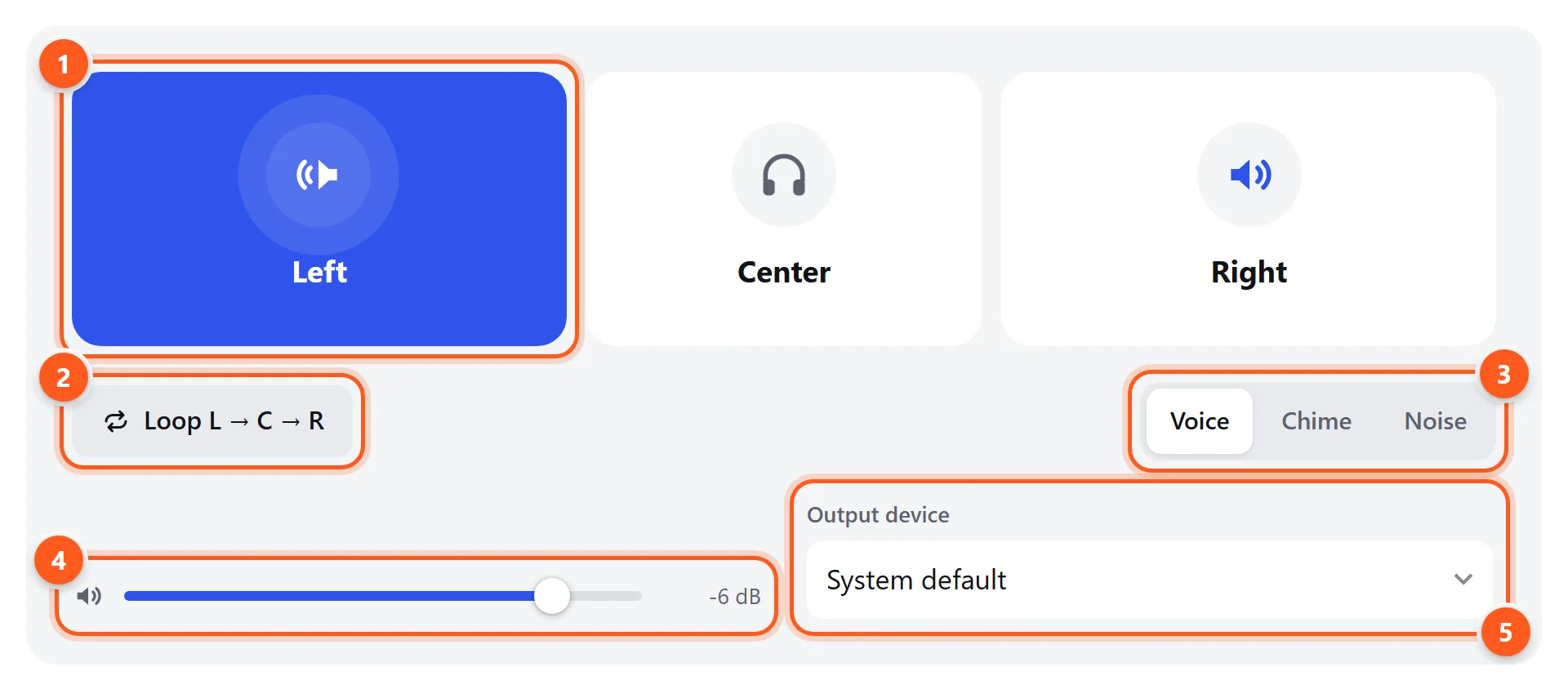
- Click a side to play it. The button lights up while it plays.
- Loop cycles Left → Center → Right until you stop it. Useful when you’re adjusting cables or settings.
- Change the test sound. Noise makes small level differences easier to hear.
- Volume for the test sound only. Your system volume still applies.
- Choose which speakers or headphones to test (Chrome and Edge only).
Tip: you can also use the keyboard. Press ← or L for left, C for center, and → or R for right.
What your result means
| What you hear | Most likely cause | Fix |
|---|---|---|
| Each sound from the correct side | Everything is working | Nothing to fix. Try the frequency test next. |
| Left comes from the right | Headphones on backwards, or speaker cables swapped | Swap the speakers or cables, or check the L/R marks on your headphones. |
| Every sound from both sides equally | Mono audio is on, or you’re on a single speaker | Turn off mono audio in your accessibility settings (see below). |
| One side is silent | Loose plug, faulty cable, balance set fully to one side, or a dead driver | Reseat the plug, reset the balance, and swap the speakers to find the faulty part. |
| One side is quieter | Balance setting, earwax on an earbud mesh, or a worn driver | Center the balance, clean the earbuds, then compare with the headphone test. |
| Crackling or buzzing | Damaged speaker cone, loose connection, or electrical interference | Run the rattle sweep in the speaker test to find the frequency that buzzes. |
How to fix left/right audio problems
Windows 11 and 10
- Mono audio: Settings → Accessibility → Audio → Mono audio should be off.
- Balance: Settings → System → Sound → select your output device → under Output settings, set the Left and Right volume sliders to the same value.
- Enhancements: disable “Spatial sound” and any vendor audio app effects (Realtek Audio Console, Dolby Access, Nahimic) while testing. Some of them remix the channels.
macOS
- Balance: System Settings → Sound → Output → select your device → drag Balance to the middle.
- Mono audio: System Settings → Accessibility → Audio → turn off Play stereo audio as mono.
iPhone and iPad
- Settings → Accessibility → Audio & Visual → turn off Mono Audio and set Balance to the center (0.00).
- For AirPods, also check Settings → [your AirPods] → Accessibility → Audio Accessibility Settings → Headphone Accommodations.
Android
- Settings → Accessibility → Audio adjustment (on some phones: Hearing enhancements) → turn off Mono audio and center the Left/right sound balance.
Bluetooth headphones
- If audio suddenly turns mono and low-quality, the headset has switched to hands-free mode because an app opened its microphone. Close calling apps, or choose the stereo “Headphones” output instead of “Headset”.
- If only one true-wireless earbud plays, put both in the case for 10 seconds, then take them out together. If that doesn’t help, forget the device and pair it again.
Which test do I need?
- Speakers sound thin or you can’t feel the bass → bass test or subwoofer test
- Sound is hollow or the center image is vague → polarity test
- Audio is out of sync with video, or games feel laggy on Bluetooth → audio latency test
- People can’t hear you on calls → mic test
- You want to check how well you hear → hearing test
- You need a specific tone or noise for testing or tuning → tone generator or noise generator